
Home / Platforms / Web messenger
The messenger in your browser
No download, no installation: open the address, sign in, get started. On your phone, a few taps turn the web messenger into an app on your home screen.
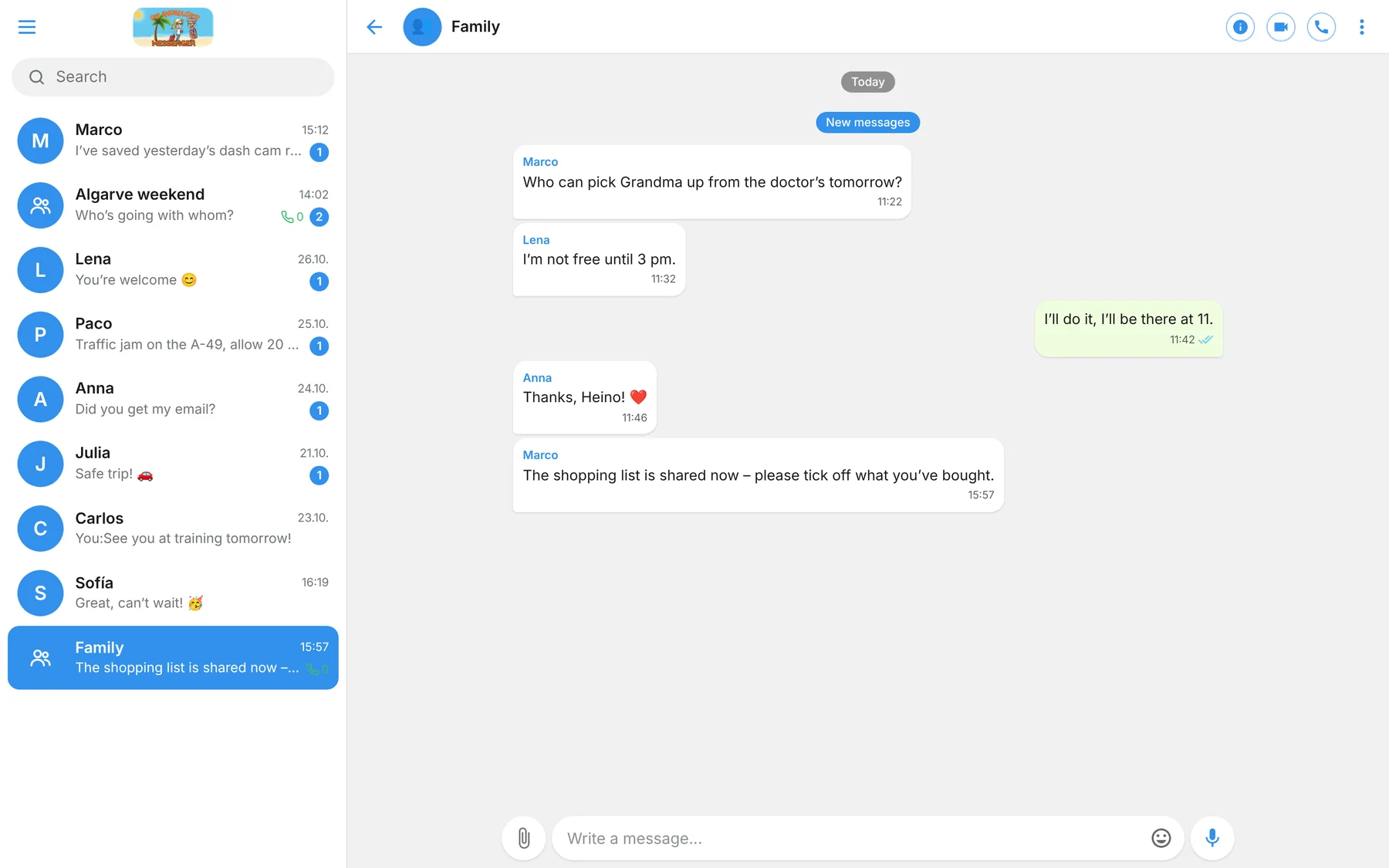
Try it first
The demo is the real web messenger with sample chats – no account, no sign-in. Send Sofía a message and she’ll reply. Nothing is saved.
In the browser
Almost everything the app can do
Chats, calls, email, calendar and lists, live streams, all five styles and even dash cam and navigation run right in the browser – although navigation doesn’t on iPhone and iPad.
Always with you
On any computer with an up-to-date browser – handy at the office or on someone else’s PC.
Its own device key
The browser gets its own key pair, making it a full, encrypted device.
Good to know
Navigation and dash cam only work while the page is open and the screen stays on. If you clear the website data, you sign in the browser as a new device.
Web app
How to turn the web messenger into an app
Once set up, the messenger starts from your home screen with its own icon and without an address bar – like an installed app.
Android with Chrome
- Open the pageOpen web.messenger-mail.de in Chrome.
- Open the menuTap the three dots ⋮ at the top right.
- Add to home screenChoose “Install app” or “Add to Home screen”.
- ConfirmTap “Install”. The DieAndalusier icon appears on your home screen.
iPhone and iPad with Safari
- Open the pageOpen web.messenger-mail.de in Safari.
- Tap ShareTap the Share icon – the square with the arrow pointing up.
- Add to Home ScreenScroll through the list and choose “Add to Home Screen”.
- AddTap “Add” at the top right. Done – the messenger is now on your Home Screen.
On a PC, Chrome and Edge offer installation via the icon on the right of the address bar.
Try it now
Sign in with your account or register.